User guide
LumenNote
User Guide
From every button on the recorder to turning a conversation into a transcript, a summary and a mind map. Six short chapters.
01 · Hardware
Meet your
LumenNote.
Designed to disappear. As thin as a card, it slips into a pocket or a notebook, or onto the back of your phone — and goes almost unnoticed while it records.
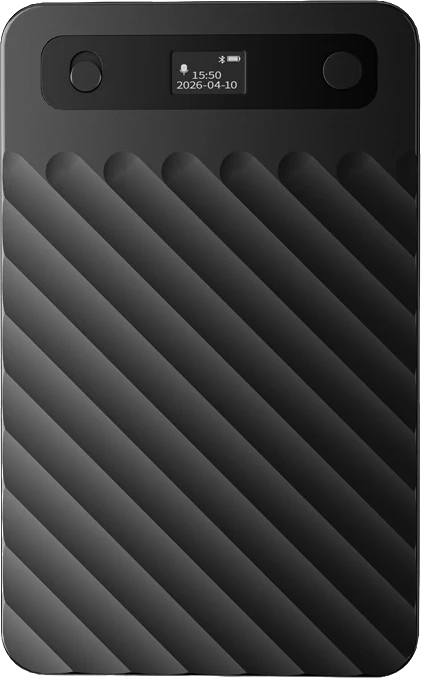 Mode switchUp · Call recording
Down · Standard Status screenTime · Rec · Bluetooth · Battery Power / record buttonHold · Power on / off
Press · Start / stop
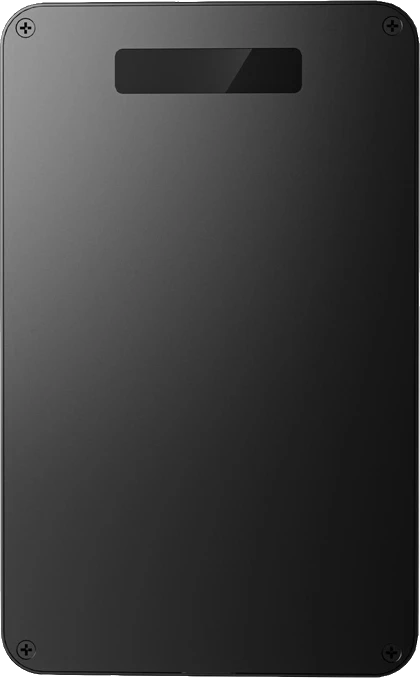 Magnetic backSnaps onto MagSafe
iPhones and metal surfaces
- 1 Mode switchSlide up for call recording, down for standard recording.
- 2 Status screenShows the time, recording, Bluetooth and battery.
- 3 Power / record buttonHold to power on or off; press to start or stop recording.
- 4 Magnetic backSnaps onto MagSafe iPhones or any metal surface.
- 44gLightAbout 44 g — easy to carry all day.
- 4.3mmBarely thereAbout the size of a credit card, and 4.3 mm thin.
- 22hAll-day battery400 mAh battery, up to 22 hours of recording per charge (Bluetooth model).
- 90daysLong standbyUp to 90 days on standby — ready whenever you are.
Accessories
02 · Basics
Power
& recording
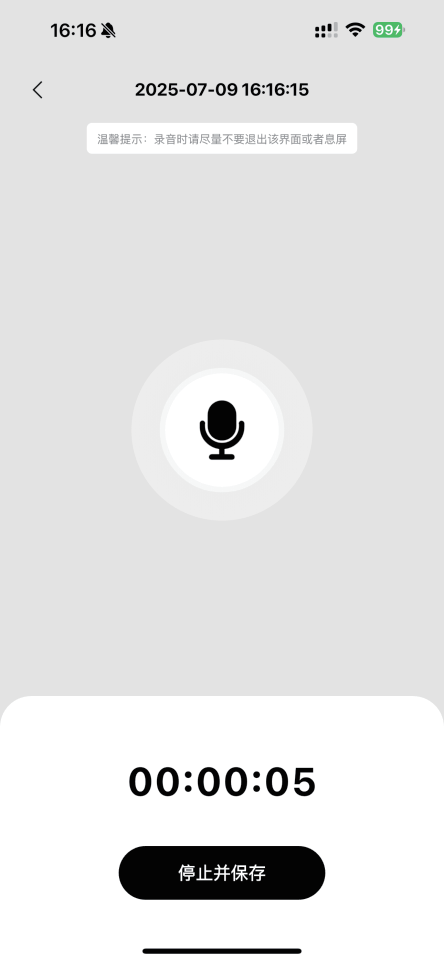
Everything happens along the top: the right button powers the recorder and starts recording, the left switch picks the mode. Choose an action below to see how it works.
03 · Bluetooth
Connect
your recorder
Connect from the LumenNote app — there’s usually no need to pair it in your phone’s Bluetooth settings first.

- 01Turn on the recorder
Hold the recorder near your phone and make sure the screen shows it’s waiting for a Bluetooth connection.
- 02Allow Bluetooth access
The first time, allow LumenNote to use Bluetooth when prompted. On Android, you may also need to allow “Nearby devices”, depending on the system version.
- 03Open the device page
Tap “Connect” on the home screen, or go to “Me → My devices” and tap Add device.
- 04Choose your recorder
Wait for it to appear in the results, then tap it to connect. There’s usually no need to pair it in the system Bluetooth list first.
04 · Recordings
Import recordings
over Bluetooth
The recorder transfers files over Bluetooth — there’s no need to join its Wi‑Fi.
- 01Stay connected
Keep the recorder connected to your phone over Bluetooth.
- 02Load the file list
Open the device details or sync page and refresh the list of files on the recorder.
- 03Choose and import
Tap “Import” next to a file. Keep the app open and the recorder close to your phone while it transfers.
- 04Wait for it to finish
Imported audio appears under “All files” on the home screen, ready to play, transcribe and organize.
05 · AI
Transcripts, summaries
& mind maps
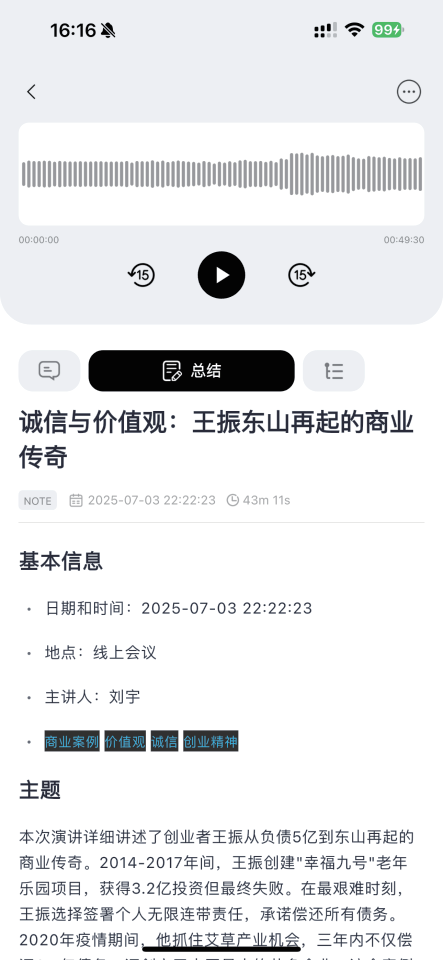
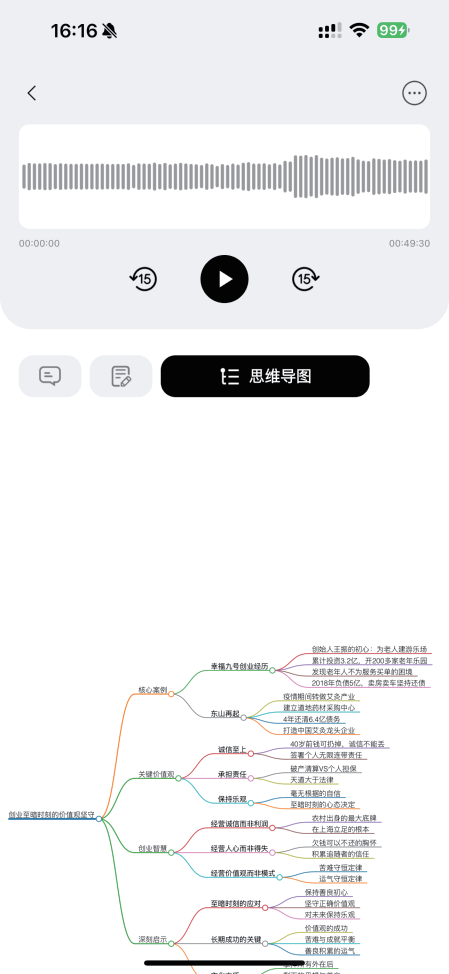
One recording, four steps, and text you can actually use.
- 01Pick a recording
Find an imported or uploaded recording on the home screen and open it.
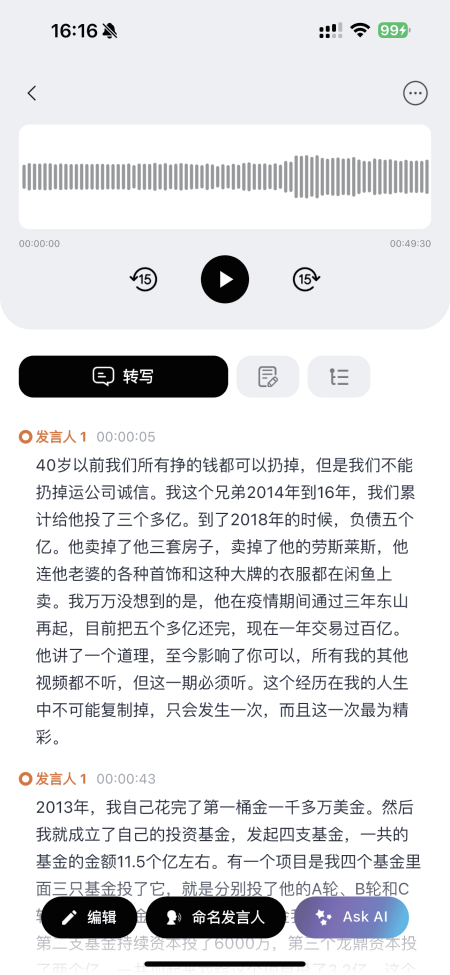
- 02Start transcribing
Tap “Transcribe”, choose the language spoken in the recording and submit.
- 03Let the cloud work
Stay online. Processing time depends on the recording length, your network and the queue.
- 04See the results
When it’s done, switch between the transcript, summary and mind map.
06 · Troubleshooting
Common
questions
The recorder doesn’t show up in my phone’s Bluetooth settings
That’s expected. Scan and connect from the device page in the LumenNote app. Some phones only list it in Bluetooth settings once it’s connected.
The app can’t find the recorder
Check Bluetooth permissions, close any other app that’s using the recorder, move it close to your phone and restart it, then scan again from the connect page.
Nothing happens when I tap Import
Make sure the recorder is still connected, reload the file list and try again. Keep the app open and your phone unlocked while it transfers.
It’s stuck on “Transcribing”
Check your network and that your plan still has minutes left. Leave the details page and refresh the list. If it still doesn’t finish, note the file name and when you submitted it, and contact support.
Still need
help?
Send us a short description of the issue, your phone model, system version and any screenshots.
jiaoyang@lumenorigin.net